
Everything you need to run Ancient R6 and Ancient ABI Radar: requirements, setup, and where to get help.
This guide covers Ancient R6 and Ancient ABI Radar, from what your PC needs to your first launch. Read Before you start first, then follow the five steps in order.
Every check and every step ends with a Done when box, a test you can see on your own screen. Do not move on until it is true.
Before you start
The loader cannot fix these for you. If one of them fails, the product will not run on your PC.
Windows Home, Pro or Enterprise
Ancient works on Windows 10 or 11 in the Home, Pro or Enterprise edition.
- Press
Win + R, typewinverand press Enter. The window shows your edition.
Done when: the edition says Home, Pro or Enterprise.
Hyper-V enabled
Ancient products require Hyper-V, so it has to be switched on.
- Press
Win + R, typeoptionalfeaturesand press Enter. - Tick Hyper-V, click OK and restart when Windows asks.
- On Windows Home this list does not show a Hyper-V entry. If that is your case, join our Discord server and tell us your edition, and we will help you turn it on.
- If Windows tells you virtualization is off, turn it on in your BIOS (it is called Intel VT-x or AMD SVM). Task Manager > Performance > CPU shows its current state.
Done when: Hyper-V is switched on and you have restarted since enabling it.
Your hardware and game
- An Intel or AMD processor.
- An NVIDIA or AMD graphics card. Ancient needs one for its overlay (Step 3).
- The game running in Borderless mode.
- OBS recording protection is supported on both products.
- Ancient R6: Steam version of the game. Built-in spoofer included.
- Ancient ABI Radar: does not work on laptops. Windows 11 up to 25H2. No spoofer included.
Done when: your PC matches everything in the lists above.
Step 1. Install dependencies
These are Microsoft libraries the loader depends on. Without them the loader can close right after you open it, or the menu can fail to appear in game. Install both, one after the other:
Done when: both installers finished without an error message.
Step 2. Prepare your system
Antivirus and anti-cheat software can block or delete the loader, so they have to be off while you use it.
- Restart your computer.
- Close all games and launchers.
- Turn off Windows Defender. Download Defender Control, extract the ZIP with the password
sordum, run it and use its button to turn Windows Defender off. - Turn off any other antivirus. Close it, or switch off its real-time protection.
- Turn off Faceit, Vanguard and any other anti-cheat you have installed.
Done when: Windows Security shows real-time protection as off, and no other antivirus or anti-cheat is running.
Step 3. Turn on your overlay
Ancient needs an overlay running while it loads. Which one you can use depends on your graphics card:
- NVIDIA card: the NVIDIA App or SteelSeries GG. Either one works.
- AMD card: SteelSeries GG only.
NVIDIA App
The NVIDIA App overlay does not work in fullscreen, so keep the game in Borderless mode.
- Download the NVIDIA App and install it.
- Open its settings, go to General and turn on In-Game Overlay.
SteelSeries GG
- Download SteelSeries GG and install it.
- Open the SteelSeries settings. Go to Moments, then Capture and Sound, and turn off Allow Moments to capture while gaming.
- Go to Overlay and Notifications and turn off Display game overlays.
- Go to General and turn on Sonar.
- Open the Sonar section, go to its Shortcuts tab and set the F7 key on Master - Volume Up.
- Press F7 before you inject, every time. Without it the overlay does not work.
Done when: your overlay is running with the settings above. On SteelSeries, F7 is set, and you press it right before you press Inject in Step 5.
Step 4. Download the loader
- Open your purchase email and use the loader download link.
- Download Loader.exe.
- If it came zipped, extract it to a folder you can find again.
Done when: Loader.exe is sitting in a folder on your PC.
Step 5. Log in and inject
- Run Loader.exe.
- Enter the key you received with your purchase.
- Wait while the loader loads and authorizes your key.
- Press Inject.
- When injection finishes, the loader closes itself. That is your signal that you can start the game.
- Start the game in Borderless mode.
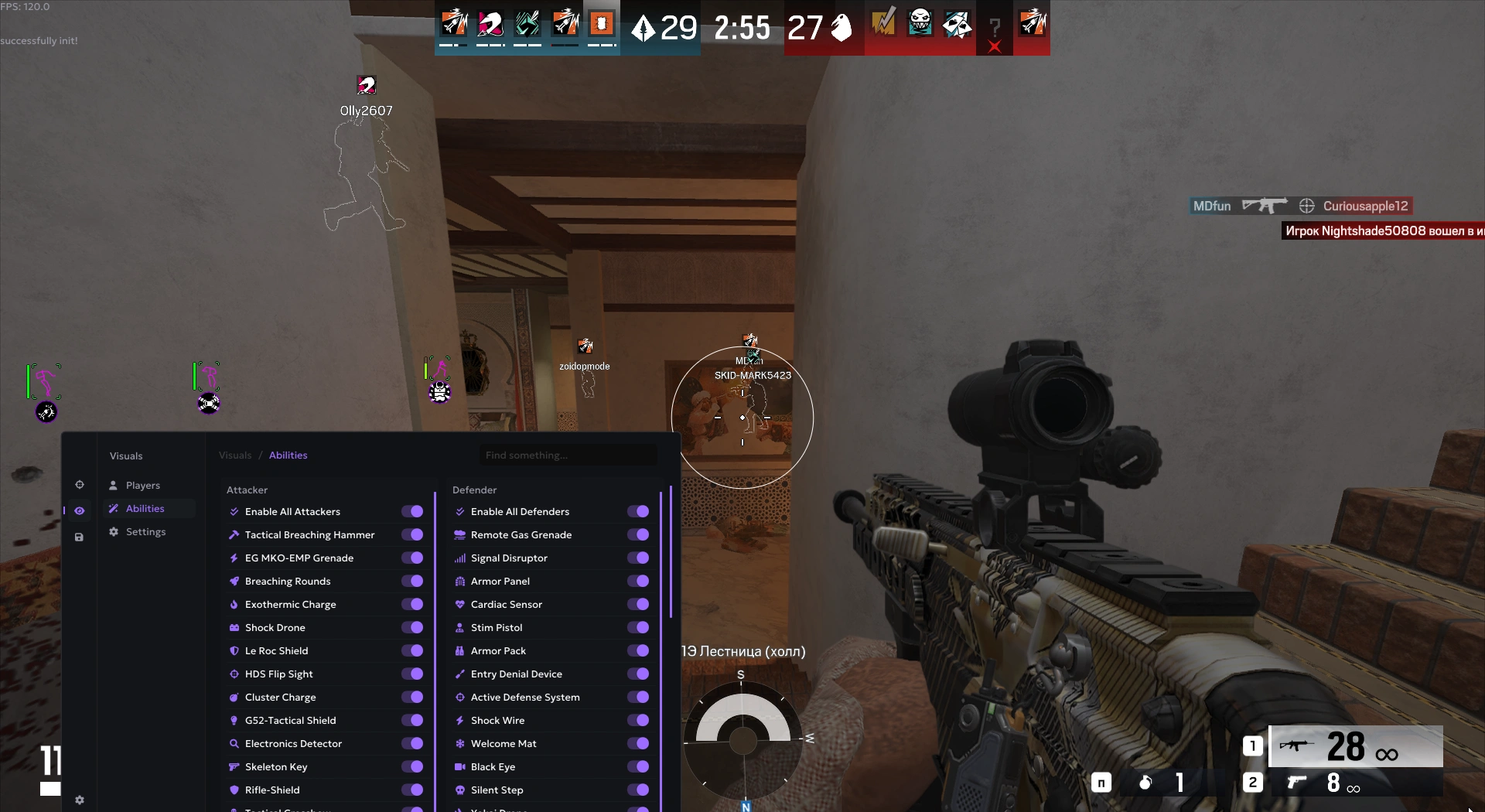
- Press Insert to open the menu.
Done when: the loader has closed itself and the menu opens in game when you press Insert.
Need help?
If anything goes wrong, join our Discord server and ask for help. Send the exact error text, a screenshot, your Windows edition and whether your graphics card is NVIDIA or AMD, so we can help you faster.